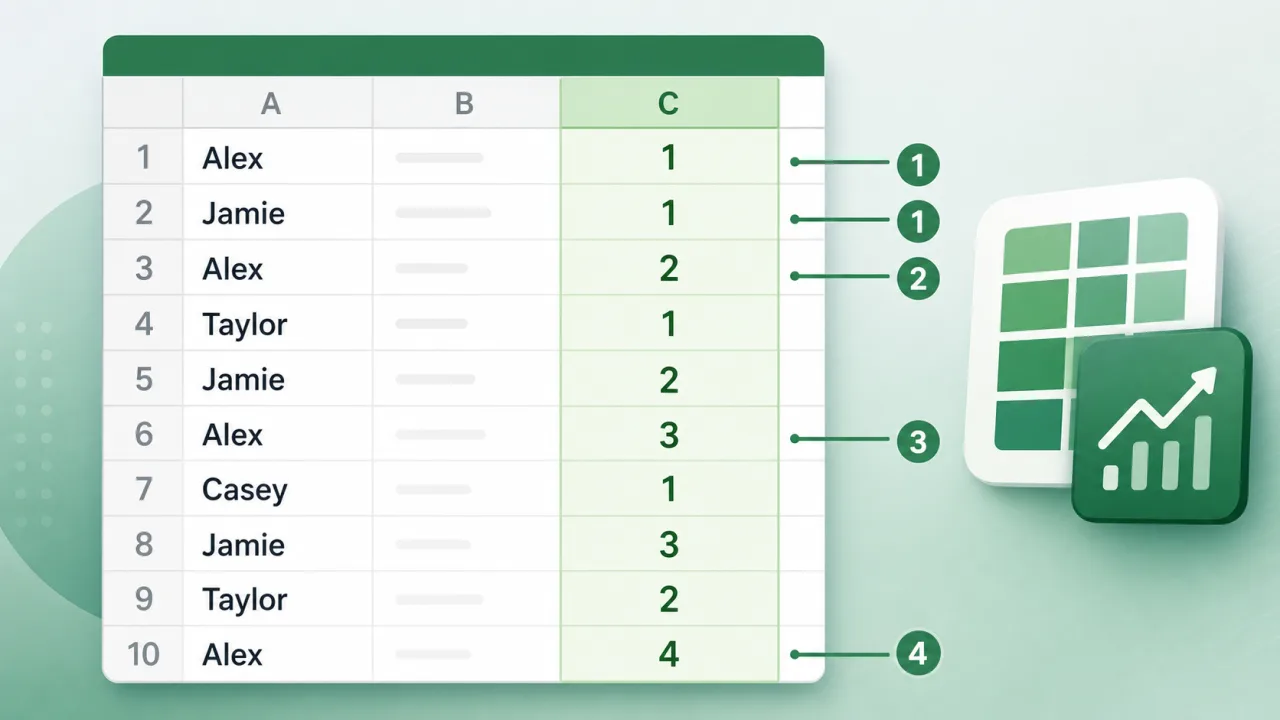
A running count of occurrence tells you which repeat you are looking at as a list grows. If a customer name appears for the first time, the running count is 1. If the same name appears again later, the running count is 2. The third time it appears, the count is 3, and so on. This is different from a normal total count because the number is calculated row by row. The result is useful when you need to label duplicate orders, assign visit numbers, track repeated support tickets, find the first record for each item, or build a unique key from a name plus its occurrence number.
The cleanest formula is usually =COUNTIF($A$2:A2,A2). The important detail is the mixed range. The first cell, $A$2, is locked so every row starts counting from the top of the data. The second cell, A2, is not locked, so it moves down as the formula is filled. On row 2 the range is $A$2:A2. On row 8 the range becomes $A$2:A8. That expanding window is what turns a normal count into a running count.
Build the formula from the first data row
Assume the names are in column A, the first real name is in A2, and the running count should appear in B2. Click B2 and enter =COUNTIF($A$2:A2,A2). Then fill the formula down. If your data starts in row 5, use =COUNTIF($A$5:A5,A5). If the values are in column D, use =COUNTIF($D$2:D2,D2). The structure stays the same: lock the first value in the list, leave the ending cell relative, and count the current row value.
Most mistakes happen because both ends of the range are locked or neither end is locked. $A$2:$A$100 gives a total count for the whole list, not a running count. A2:A2 copied down becomes A3:A3, then A4:A4, which only checks the current row. The correct mixed range is between those two extremes. It starts fixed, then grows.
| Need | Formula pattern | Why it works |
|---|---|---|
| Running count of names in A | =COUNTIF($A$2:A2,A2) | The top of the range is fixed and the bottom expands as the formula is copied down. |
| Running count of product codes in D | =COUNTIF($D$2:D2,D2) | The same pattern works for text, numbers stored as text, and product IDs. |
| Show only duplicate occurrence numbers | =IF(COUNTIF($A$2:A2,A2)>1,COUNTIF($A$2:A2,A2),"") | The first occurrence stays blank, later repeats show 2, 3, 4, and so on. |
| Build a unique label | =A2&"-"&COUNTIF($A$2:A2,A2) | Combines the value and occurrence number into labels such as Alex-1 and Alex-2. |
Count repeats by more than one column
Real lists often need more than one condition. You may not want the second appearance of Alex overall. You may want the second appearance of Alex in the East region, the third repair for one device serial number, or the repeat count for the same customer and same month. In that case, use COUNTIFS, which accepts multiple criteria ranges. The principle is the same: each criteria range starts locked and ends on the current row.
For example, if the customer is in column A and the region is in column B, the running count in C2 can be =COUNTIFS($A$2:A2,A2,$B$2:B2,B2). On each row, Excel asks two questions at once. How many previous rows up to this point have the same customer? How many of those rows also have the same region? Only rows matching both are counted.
Use running counts to make useful labels
The count is often only the first step. Once you know the occurrence number, you can build helper values that make reports easier to audit. A common example is a duplicate key. If the order number is in A2 and the running count is in B2, use =A2&"-"&TEXT(B2,"00"). The first duplicate becomes ORD100-01, the second becomes ORD100-02. The TEXT function keeps the numbering aligned with leading zeroes.
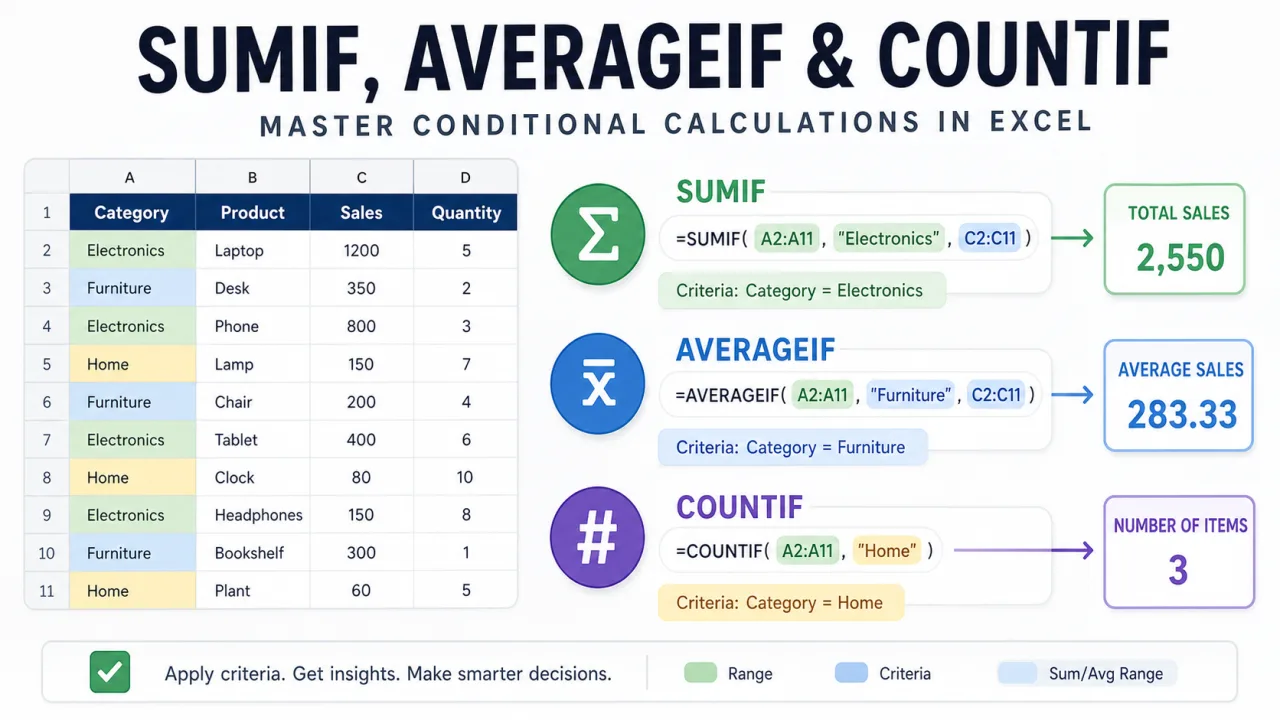
You can also flag only the first record for each value. Use =COUNTIF($A$2:A2,A2)=1. That returns TRUE for the first appearance and FALSE afterward. It is useful for filtering one row per customer, removing repeated items from a summary, or checking which rows should feed a lookup table. If you later work with conditional totals, the same habit of locking ranges will help in SUMIF, AVERAGEIF, and COUNTIF formula usage because those formulas also depend on clean range selection.
Troubleshooting running count formulas
If every row returns 1, the range is probably not expanding. Check whether the formula was written as =COUNTIF(A2:A2,A2). If every duplicate returns the final total, the entire range is probably locked. Check whether you used something like =COUNTIF($A$2:$A$100,A2). If counts seem split apart, check for hidden spaces, inconsistent capitalization, or numbers stored as text. COUNTIF is not bothered by capitalization, but extra spaces matter. Alex and Alex are not the same value.
For messy imported data, clean the source column first. A helper such as =TRIM(A2) removes leading and trailing spaces. If you need a case-sensitive running count, use a more advanced formula with SUMPRODUCT and EXACT, but most business lists do not need that complexity. Start with COUNTIF, verify the range locks, and test the formula on a small visible section before copying it through the full file.
The main idea is simple: a running count is a normal count performed through a growing window. Once that pattern is clear, you can use it in customer lists, issue trackers, sales logs, inventory sheets, project records, and data cleanup work. It is one of those Excel techniques that looks small but quietly makes large spreadsheets easier to inspect and trust.